Full Documentation
The definitive guide to mastering Shopify redirects and SEO architecture.
1. Quick Start Guide
Welcome to Smart Redirects App! Getting started takes less than 2 minutes. Our app bridges the gap between Shopify's native features and advanced URL management.
Initial Deployment
1. Unlock the Theme: Navigate to Online Store > Themes > Customize.
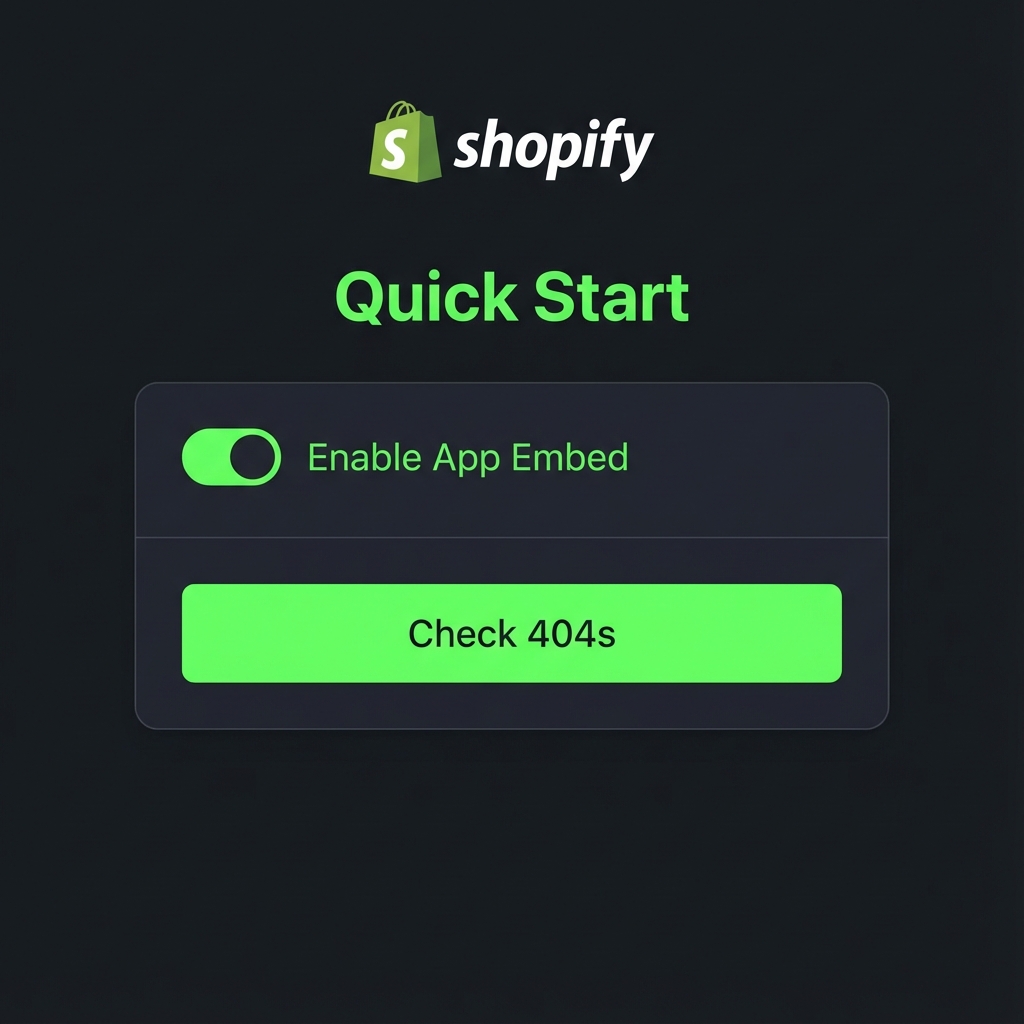
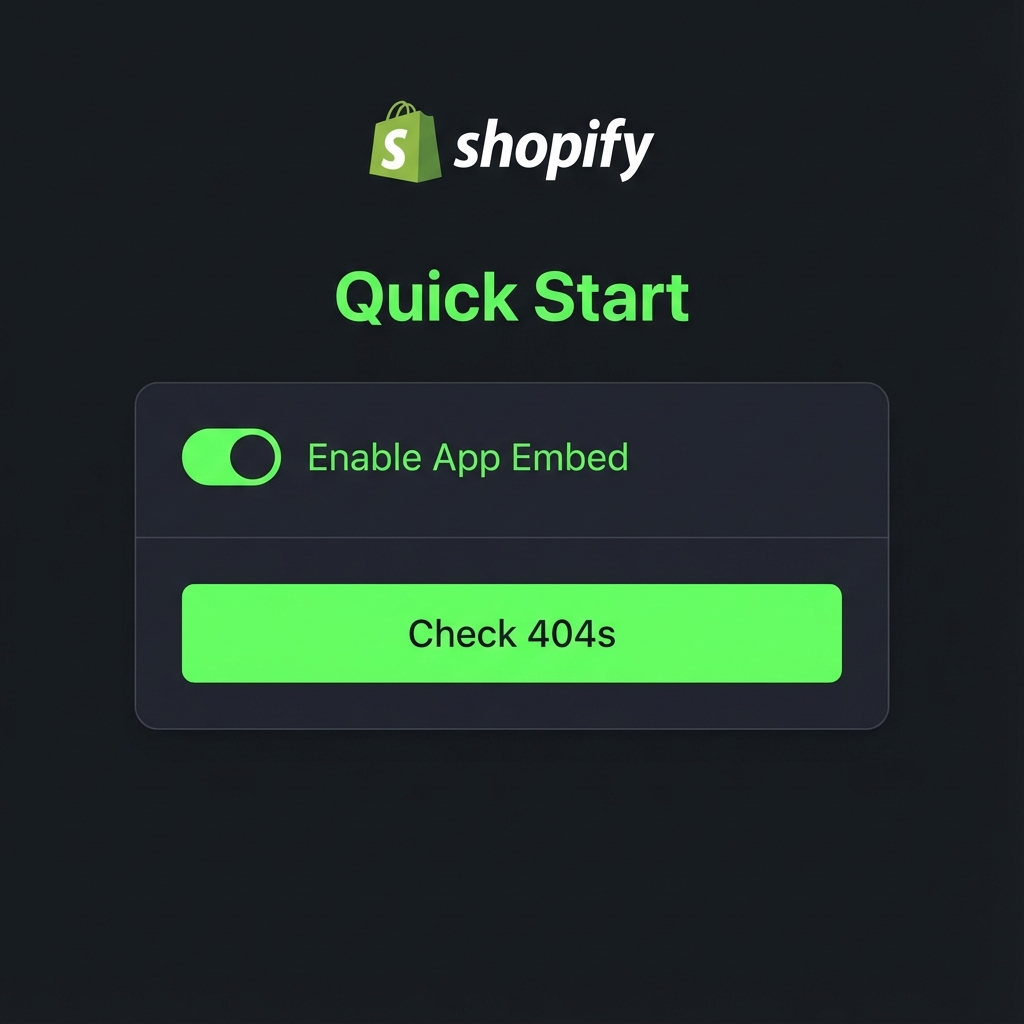
2. Enable App Embed: On the left sidebar, click the "App Embeds" icon. Toggle Smart Redirects App to "Active".
3. Capture your first 404: Visit a non-existent URL on your store (e.g., yourstore.com/test-404). It will appear in your dashboard instantly.
Setup Guide
Follow this video guide to install, configure, and start using Smart Redirect App to manage redirects, fix broken links, and improve your store's SEO.
1. Install Smart Redirect App
- Visit Shopify App Store: Search for "Smart Redirect App" and click "Add app".
- Approve Permissions: Grant access to redirect management, themes, and online store settings.
- Complete Installation: The app installs and redirects you to the setup dashboard.
2. Connect Your Shopify Store
- Enter Store URL: Input your store's myshopify.com domain (e.g., mystore.myshopify.com).
- OAuth Authentication: Complete the Shopify OAuth flow to securely connect your store.
- Verify Connection: Confirm the app dashboard shows your store name and plan details.
3. Configure General Settings
- Default Redirect Behavior: Set fallback behavior for unmatched URLs (homepage, search, or custom URL).
- Enable 404 Capturing: Turn on automatic 404 error detection to capture broken links.
- App Embed: Enable the theme app embed in Online Store > Themes > Customize > App Embeds.
- Redirect Matching: Choose default matching type: exact, wildcard (*), or regex.
4. Create Your First Redirect
- Source URL: Enter the old/broken path (e.g.,
/old-product-page). Supports exact or patterns. - Destination URL: Enter the new target path (product, collection, blog, etc.). Verify it exists.
- Redirect Type: Select 301 (Permanent), 302 (Temporary), or 404 (Track only).
- Save & Sync: Click Save. The app validates and syncs with Shopify's native redirect engine.
5. Import Bulk Redirects
- Prepare CSV: Use headers
Redirect from, Redirect toorfrom_path, to_path. - Upload File: Go to Redirects > Import > Add File, select your CSV (max 5MB).
- Preview & Validate: Review the import preview showing total count and first entries.
- Import: Click "Import redirects". Large imports run in background; track via Activity Log.
6. Test Redirects
- Open Tester: Click "Test URL" in the sidebar or header of the Redirects page.
- Enter Source URL: Input the path to test (e.g.,
/products/old-collection/item). - Verify Match: See which rule matches, its type (exact/wildcard/regex), and target destination.
- Check Status Code: Confirm the HTTP status (301, 302, or 404) matches expectations.
7. Monitor Analytics
- Redirect Traffic: View total hits, daily trends, and top-performing redirect rules.
- Traffic Sources: Identify where redirect traffic originates (search, direct, referral).
- Performance: Track redirect execution speed and success rates.
- Export Data: Download analytics reports for deeper analysis.
8. Track 404 Errors
- 404 Dashboard: View all captured 404 errors with URL, referrer, hit count, and timestamp.
- Sort & Filter: Sort by frequency to find highest-impact broken links.
- Auto-Fix: Enable auto-fix to redirect unresolved 404s to a default page (home/search).
- Resolve Manually: Map individual 404s to proper destinations to convert them into redirects.
9. Use Wildcards & Regex
- Wildcards (
*): Match any sequence. Example:/old-blog/*matches all sub-paths. - Regex Patterns: Use JavaScript-style regex for precision. Example:
^/products/[0-9]+$. - Capture Groups: Reuse matched parts in destination with
$1,$2, etc. - Priority: Rules execute in order: Exact → Wildcard → Regex → Fallback.
10. Template Rules (Pro)
- Product Migrations: Bulk redirect old product paths to new collections or handles.
- Blog Archiving: Clean up dated blog URLs while preserving SEO authority.
- Clean Paths: Auto-strip unwanted suffixes like
-oldor_v1from URLs. - Requires Pro: Upgrade to Pro plan to unlock Template Rules feature.
11. Live URL Migrations (Pro)
- Override 404-only: Resolved Links redirects only work on 404s. Live Redirects work on active pages.
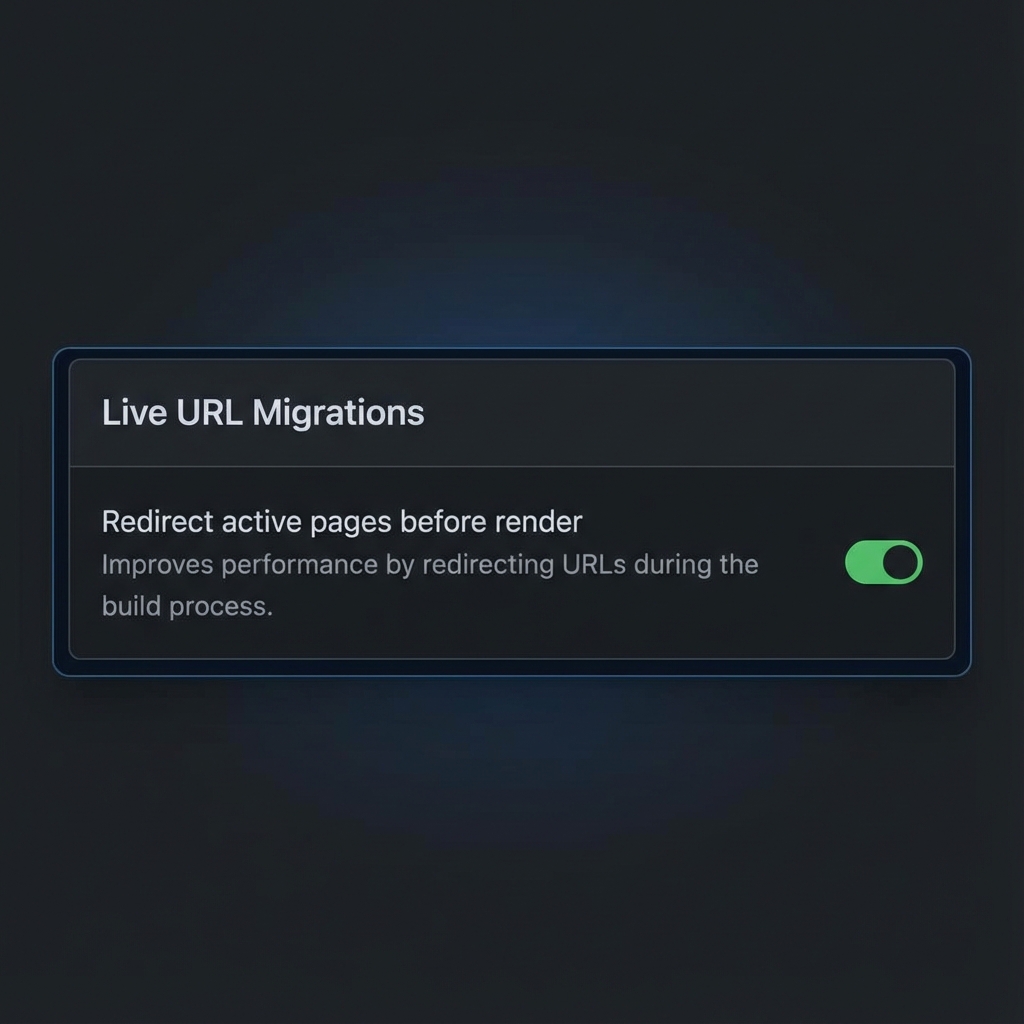
- Client-side Script: High-speed app script detects URL and redirects before page renders.
- Use Cases: Migrate active marketing paths, change collection handles, redirect sold-out pages.
- Requires Pro: Upgrade to Pro plan for Live URL Migrations feature.
Quick Links
Jump directly to detailed documentation:
2. Redirect Management
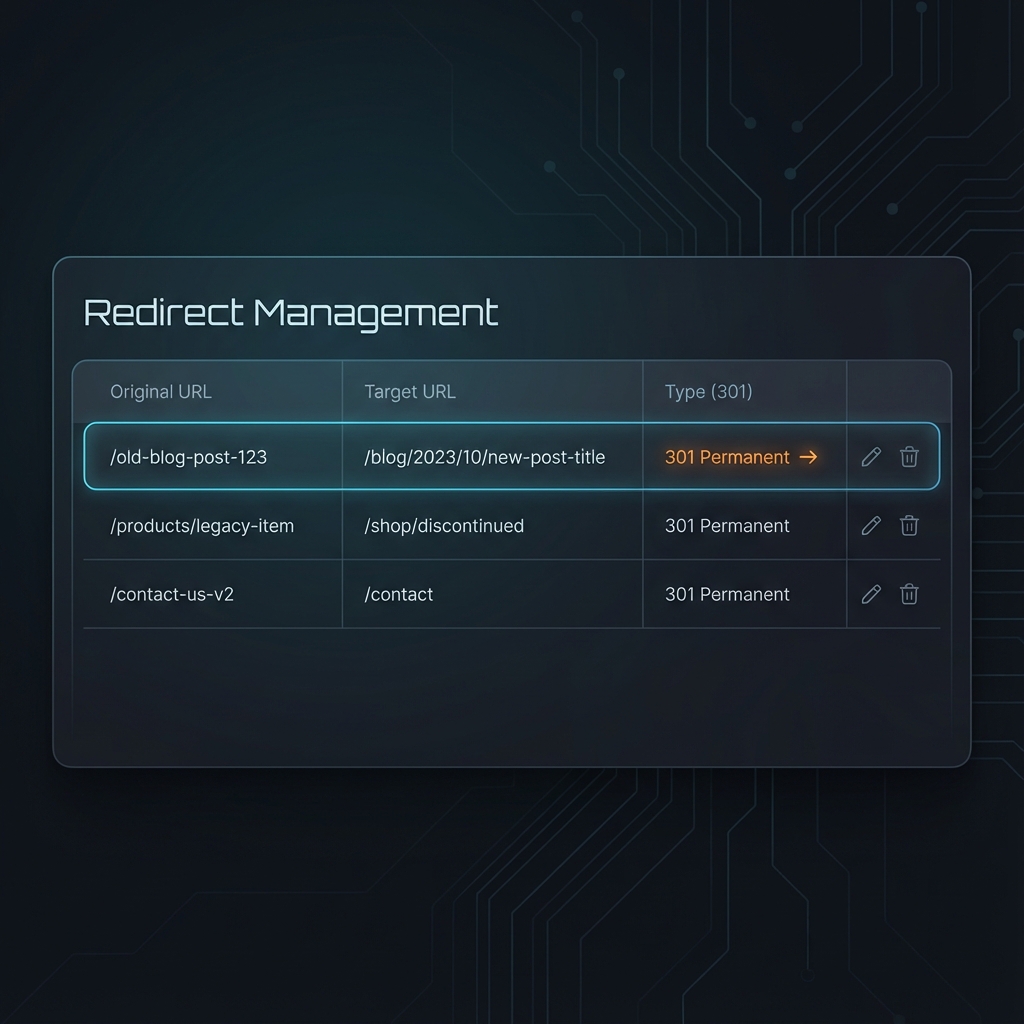
Manage your entire redirect lifecycle from a single interactive table. We support two primary destination types:
The Workflow
Resolved Links: These are permanent 301 redirects that sync directly with Shopify's internal engine. They are executed at the server level, providing the fastest possible experience for visitors.
Navigation Cleanup: Use the "Unresolved" tab to see where visitors are getting lost and map them to relevant collections or products.
Redirect Source: Every redirect tracks its creation source:
- Manual: Created directly via the "Create Redirect" button.
- Automatic: Captured by our 404 tracker or generated by Auto-Flattening.
- Shopify: Synced from your store's existing native redirects.
- CSV Import: Added via bulk file upload.
Official Shopify Resources
For strict compliance and understanding of how Shopify handles native URL redirects, please refer to the official documentation:
Shopify Manual: Creating URL Redirects →3. Pattern Mastery (Wildcards & Regex)
Manual redirection is slow. Patterns allow you to handle thousands of URLs with a single rule. This is the core power of Smart Redirects App.
Wildcards (*) — Simple Path Matching
The * symbol acts as a "catch-all" for any sequence of characters.
Common Use Cases:
- Match Everything After:
/old-blog/*matches/old-blog/post-1,/old-blog/category/shoes. - Match Everything Before:
*/old-suffixmatches/shoes/old-suffix,/hats/old-suffix. - Match In-Between:
/products/*/detailsmatches/products/shoe/details.
Example: /products/*-old → /collections/all
Effect: Any product URL ending in -old is automatically redirected to the All collection.
Regex (Regular Expressions) — Precision Power
Smart Redirects App supports JavaScript-style Regular Expressions (RegEx) for setting up advanced redirects in your Shopify store. This allows for extremely granular control over URL transformations.
Supported RegEx Syntax
Anchors
| Symbol | Function |
|---|---|
^ |
Matches the start of a URL path. |
$ |
Matches the end of a URL path. |
Example: ^/products/.*$ matches any URL that starts with /products/.
Character Classes
| Symbol | Function |
|---|---|
. |
Matches any single character. |
[abc] |
Matches any one character inside the brackets. |
[0-9] |
Matches any digit between 0–9. |
[^abc] |
Matches any character except a, b, or c. |
Example: ^/products/[0-9]+$ matches /products/123, /products/456, etc.
Quantifiers
| Symbol | Function |
|---|---|
* |
Matches 0 or more repetitions. |
+ |
Matches 1 or more repetitions. |
? |
Matches 0 or 1 repetition. |
{n} |
Matches exactly n times. |
{n,} |
Matches n or more times. |
{n,m} |
Matches between n and m times. |
Example: ^/products/[a-z]{3,5}$ matches 3 to 5 lowercase letters (e.g., /products/bag, /products/shoes).
Groups and Alternation
| Symbol | Function |
|---|---|
( ) |
Defines a capture group. |
| |
Works like OR between patterns. |
Example: ^/(products|collections)/(.*)$ matches both product and collection paths.
Capture Groups & Variable Replacement
Capture parts of your source path and reuse them in your target link using $1, $2, etc.
Target Link: /new-products/$1/$2
Result: /products/men/shoes → /new-products/men/shoes
Common Shopify Examples
Redirect all products to a single collection.
Source: ^/products/.*$Target: /collections/all-products
Redirect product IDs (numbers only) to a new deal page.
Source: ^/products/[0-9]+$Target: /collections/special-deals
Redirect products while keeping their handle.
Source: ^/products/(.*)$Target: /collections/$1
Redirect both products and collections to an archive.
Source: ^/(products|collections)/(.*)$Target: /archived/$1/$2
4. Template Rules (Pro)
Template Rules help you manage URL redirects across your site using predefined patterns. Each template type is designed for a specific URL transformation pattern, making it easy to maintain consistent URL structures throughout your site. Simply choose a template type and fill in the required parameters to create a rule that will automatically handle matching URLs.
Common Templates
- Product Migrations: Redirect old product paths to collections or updated handles.
- Blog Archiving: Clean up dated blog URLs while preserving SEO power.
- Clean Paths: Automatically strip unwanted suffixes like
-oldor_v1.
5. Redirect Tester
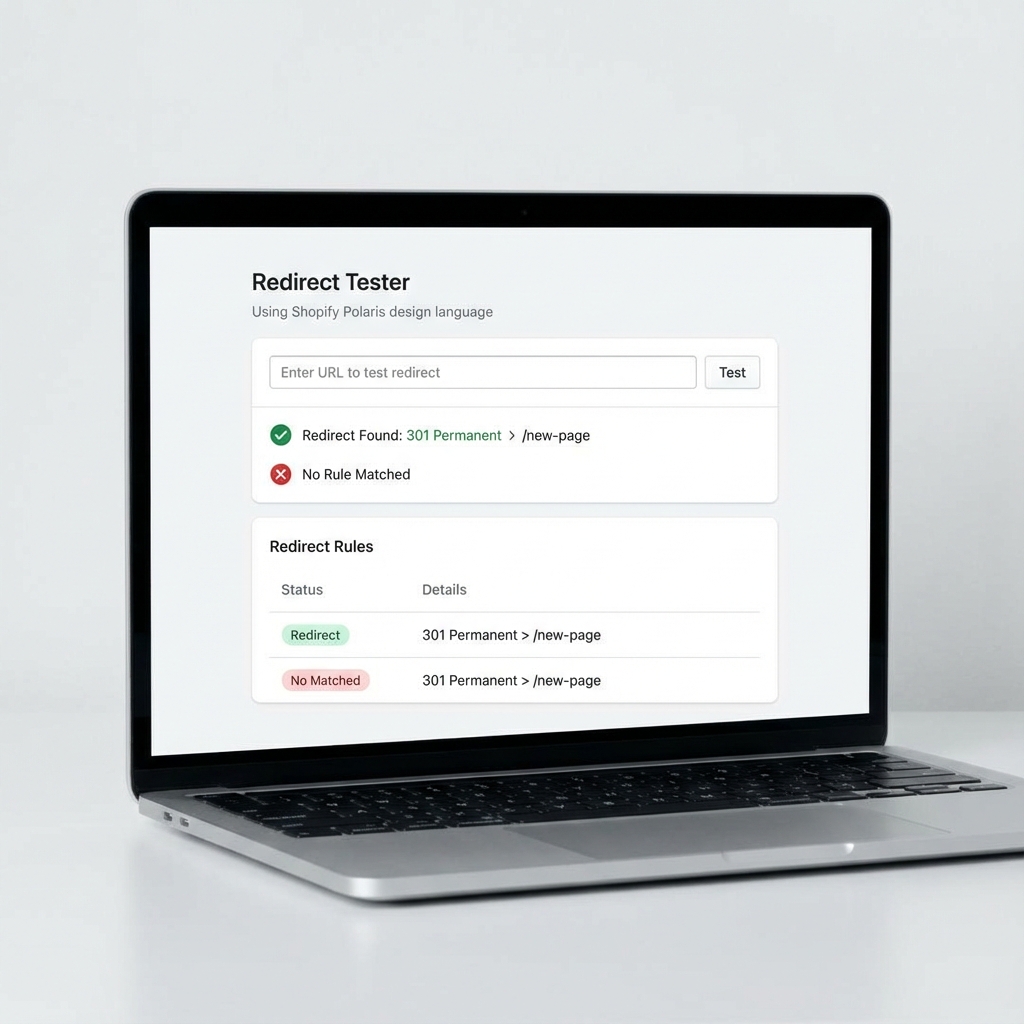
The Redirect Tester is a specialized tool designed to help you validate your rules before they affect live traffic. It is especially useful for complex Wildcard and Regex patterns.
How it Works
1. Access the Tester: Click the Test URL button in the header of the Redirects page.
2. Enter a Sample URL: Type the path you want to test (e.g., /products/old-collection/item).
3. Instant Results: The app will scan your active rules and tell you exactly which one matches, what type of rule it is, and where the user will be redirected to.
Matching Priority: The tester follows our strict execution sequence:
Exact Match → Wildcard Pattern → Regex Pattern → Global Fallback
6. SEO Optimization & Auto-Flattening
Advanced patterns are great for flexibility, but native redirects are better for SEO. Our optimization tools bridge this gap automatically.
Auto-Flattening (Real-Time Optimization)
When enabled in Settings, the app monitors hits on your Wildcard and Regex patterns. As soon as a URL is hit, the app creates a permanent, native Shopify redirect for that specific path.
| State | Flow & Behavior |
|---|---|
| Enabled |
1. Trigger: A visitor or crawler hits a URL that matches your pattern. 2. Execution: The app redirects the user instantly. 3. Conversion: A new Exact Match record is automatically created in the app and synced to Shopify.4. Optimization: All future hits are handled natively by Shopify's servers (fastest possible speed). |
| Disabled |
1. Trigger: A visitor hits a matching URL. 2. Execution: The app redirects the user via the client-side script. 3. Persistence: No permanent record is created. Every hit continues to be processed by the app's redirection engine. 4. Result: Good for keeping your redirect list clean, but slightly slower than native redirects. |
Bulk Resolve by Pattern
Have thousands of old 404 captures? Instead of mapping them one by one, use Bulk Resolve. This tool scans your entire unresolved list and automatically matches them against your active patterns, converting them into native redirects in seconds.
The "Retroactive" Flow:
- Scan: The system looks through all records in your Broken Links (Unresolved) tab.
- Match: Each URL is tested against your active Wildcard and Regex rules.
- Fixed: If a match is found, the
Redirect ToURL is automatically populated from your pattern. - Convert: The 404 capture is converted into a
Resolved (Exact Match)redirect and queued for Shopify Sync.
💡 Flattening the Fallback
Even your global Automatic Redirect fallback now uses flattening! Every 404 hit that gets sent to your homepage (or custom fallback) becomes a permanent redirect record, ensuring your SEO authority is preserved for every single broken link on your store.
6. Live URL Migrations (Pro)
Resolved Links redirects only work on 404 pages. If a page still exists, Shopify ignores the redirect.
Live Redirects override this behavior. Our high-speed App Script detects the active URL and forces a redirect BEFORE the page fully renders. This is essential for:
- Migrating active marketing paths to new landings.
- Changing collection handles without deleting the old ones.
- Redirecting "Sold Out" pages while they are still indexed.
7. Auto-Fix Automation
Stop losing sales from accidental typos. Auto-Fix acts as a fallback for 404 errors that you haven't manually mapped yet.
When enabled, any visitor hitting a 404 page is automatically caught and sent to your Default Redirect URL (usually the Home or Search page). This keeps the customer in the buying loop instead of stuck on an error page.
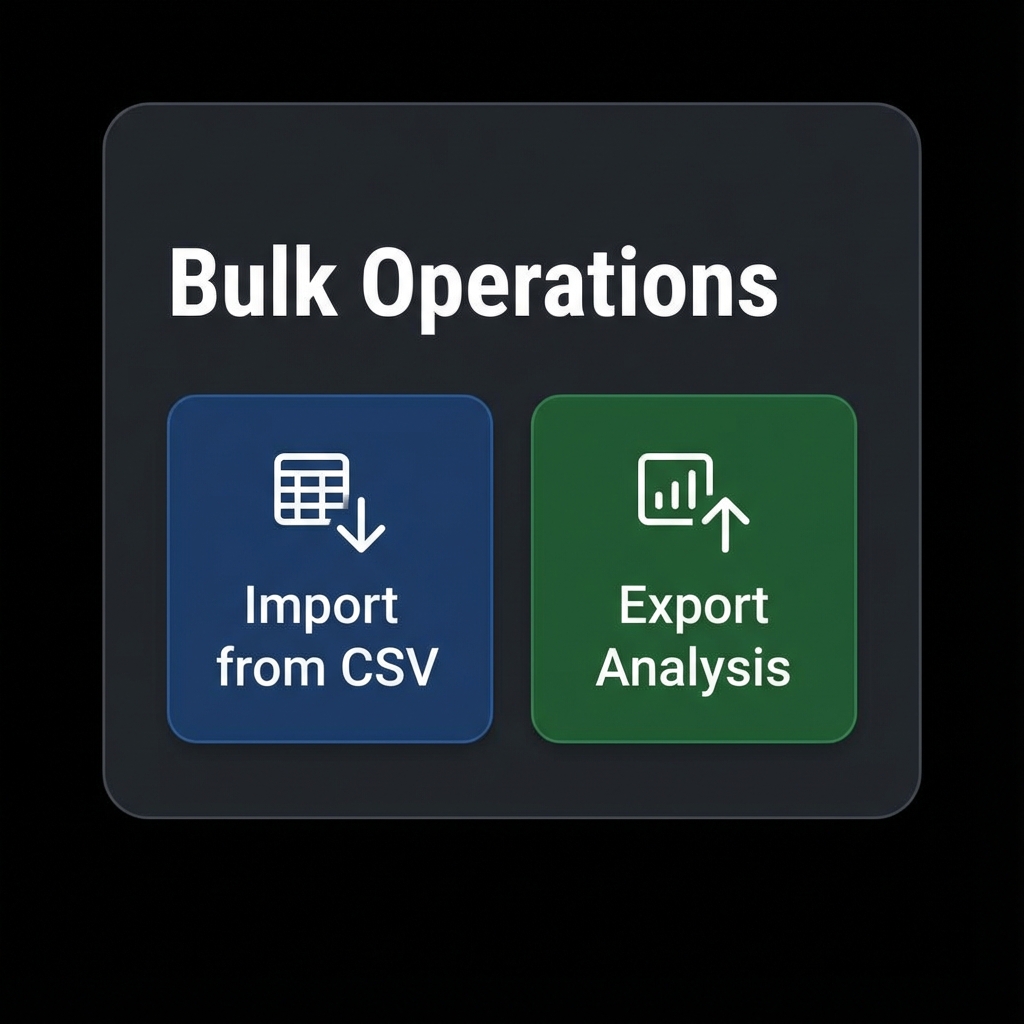
8. Bulk Operations (Import & Export)
Efficiently manage large-scale redirect operations with our streamlined import and export system. Perfect for migrations, bulk updates, and backup workflows.
All Bulk Operations (Import, Export, and Shopify Sync) are tracked in real-time. A status banner appears at the top of the app showing live progress percentage of your task.
Edit Multiple URL Redirects at the Same Time
You can edit URL redirects in bulk. This is useful when you need to update multiple redirects with similar changes or manage large-scale modifications efficiently.
Steps:
- From your Smart Redirects App dashboard, go to Redirects.
- Select the URL redirects that you want to edit by checking the boxes next to each redirect.
- Click Edit redirect from the bulk actions menu.
- Enter the changes you want to apply.
- Click Save.
Import Your URL Redirects
You can import your existing URL redirects to the app. Our multi-step import process ensures data accuracy and provides full visibility before committing changes to your store.
Steps:
- From your Smart Redirects App dashboard, go to Redirects.
- Click Import in the top navigation.
- Click Add File and select a CSV file from your computer.
- Click Upload file. The system validates headers automatically.
- Review the import preview showing the total count and first few redirects.
- Click Import redirects to process. Large imports run in the background.
- View the completion summary showing how many redirects were added or updated.
- Click Close.
CSV Import Format
Your CSV file should contain the following headers (case‑insensitive):
Redirect from, Redirect to or from_path, to_path
Supported Header Variations:
- From Path:
from_path,redirect_from,from - To Path:
to_path,redirect_to,to match_type: (Optional) Set toexact,wildcard, orregex. Auto-detected if omitted.redirect_type: (Optional) Set to404for broken links or301for live pages.
- Files must be less than 5MB.
-
from path is required.- Invalid rows will be skipped and logged in the error report.
Export Your URL Redirects
Export your redirects to CSV for backup, migration, or analysis. Choose exactly what you need with flexible filtering options.
Steps:
- From your Smart Redirects App dashboard, go to Redirects.
- Click Export in the top navigation.
- Choose which redirects you want to export:
- Current page - Export only the redirects visible on the current page (up to 10 items)
- All URL redirects - Export your entire redirect database
- Selected redirects - Export specific items you've selected in the table
- Redirects matching your search - Export all redirects matching your current search query
- Click Export URL redirects.
- Large exports are processed in the background. Track progress via the Activity Log.
- Download your CSV file when the export is complete.
Format: All exports are generated as standard CSV files, compatible with Excel, Google Sheets, and other spreadsheet programs.
Large exports are processed in the background. Track progress in real-time via the Activity Log, and download your file when complete.
9. Automatic Redirect Settings
Enable automatic redirection for any 404 errors that haven't been manually mapped. When turned on, visitors hitting a missing page are instantly sent to the Default Redirect URL you configure (commonly your homepage or a search page).
- Navigate to Settings → Automatic Redirect in the app dashboard.
- Toggle the
Enable Automatic Redirectionswitch. - Enter your desired
Default Redirect URL(e.g.,https://yourstore.com/). - Save changes. All future 404s will now be captured automatically.
10. Notification Settings
Configure how you receive alerts about your store's SEO health. We've simplified our notification system to focus on what matters most.
404 Error Report– Receive an automated summary of your store's SEO performance. You can choose between Daily, Weekly, or Monthly delivery frequencies to suit your workflow.Alerts & Reminders– Immediate notifications triggered when urgent issues are detected.
Adjust these settings to ensure you stay on top of critical SEO issues without overwhelming your inbox.
11. Language Settings
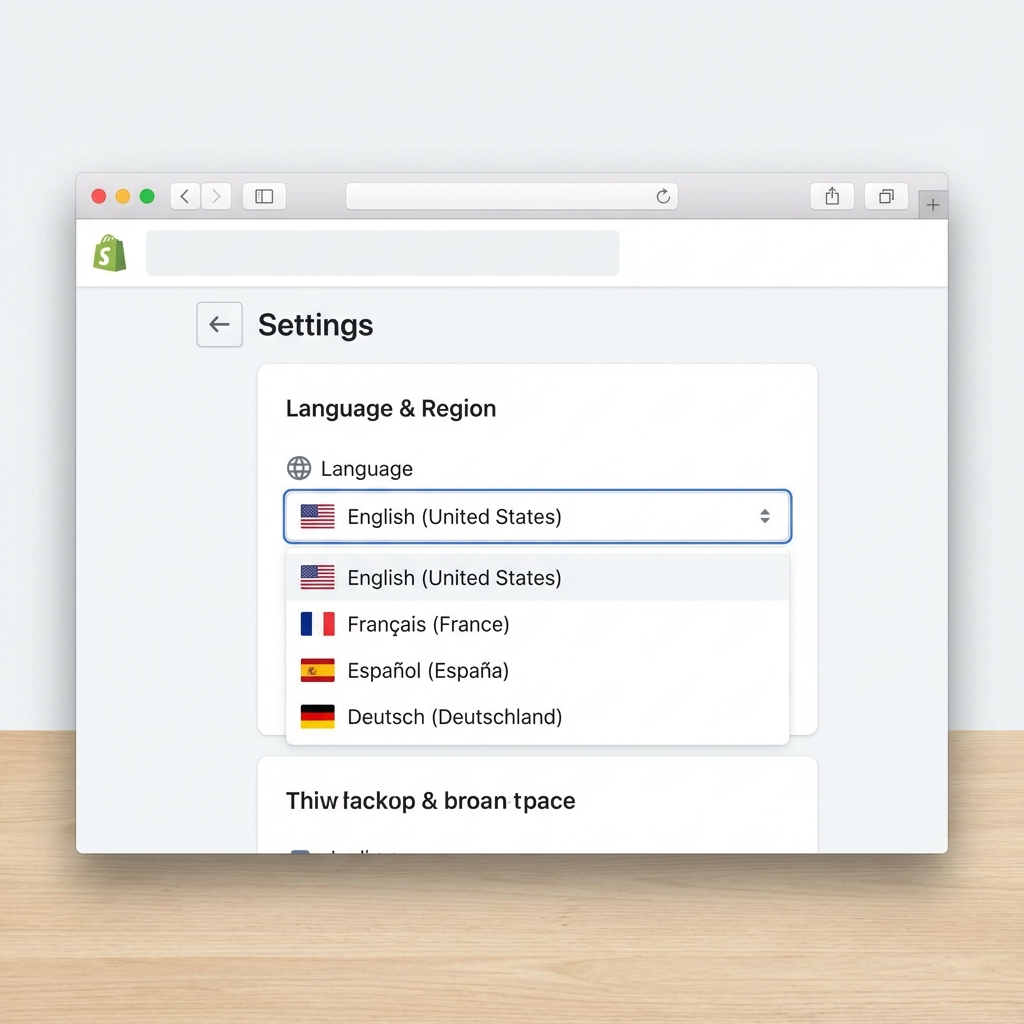
Smart Redirects App is localized to support global merchants. You can customize the dashboard interface language to match your preference.
Changing the Language
1. Go to the Settings page from the main sidebar.
2. Locate the Language Settings section at the bottom.
3. Select your preferred language from the dropdown menu (e.g., English, Spanish, French, German, etc.).
4. The application interface will update immediately. Your preference is saved locally for your next session.
12. Analytics & Feature Availability
Understanding how our app tracks data and gates features ensures you get the most out of your plan.
To keep your data clean and actionable, we DO NOT track every single page view on your store.
- 404 Errors: Always tracked.
- Redirects: Recorded ONLY when a redirect actually occurs.
- Normal Traffic: Ignored to prevent database bloat and ensure you only see issues that need attention.
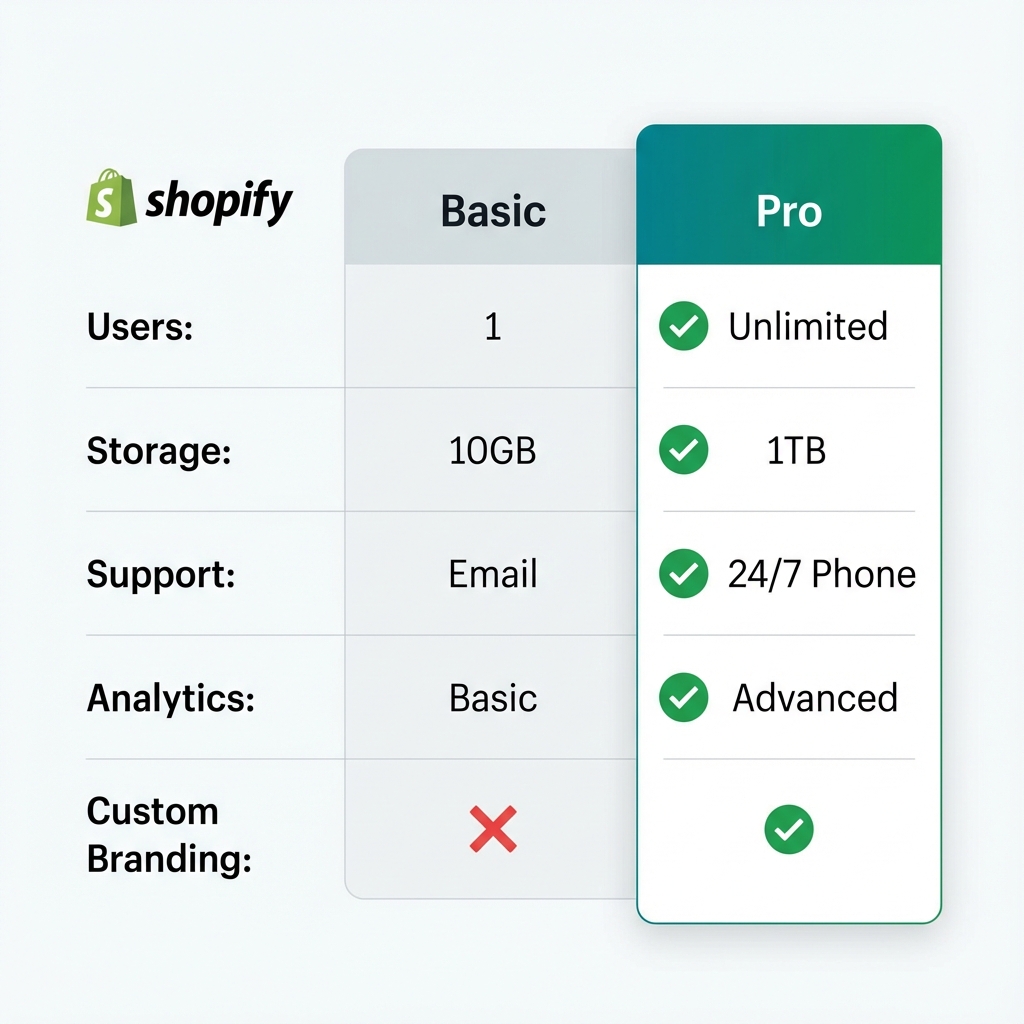
Feature Requirements
| Feature | Requirement |
|---|---|
| Live Redirects | Requires Live (Active page) redirects plan feature. |
| Wildcard Patterns | Requires Redirect patterns plan feature. |
| Regex Patterns | Requires Regex pattern redirects plan feature. |
If a feature is not enabled in your plan, the corresponding redirects will not be processed, even if they are defined in your dashboard.
13. Shopify Redirects vs. Smart Redirects App: What's the Difference?
Compare the native capabilities of Shopify with the advanced toolkit of Smart Redirects App to understand which solution fits your store's complexity.
| Feature | Native Shopify | Smart Redirects App |
|---|---|---|
| Manual Redirects | ✅ | ✅ |
| Bulk Import CSV | ✅ | ✅ |
| Bulk Export Redirects | ❌ | ✅ |
| Squarespace Template Rules | ❌ | ✅ |
| Real-Time 404 Detection | ❌ | ✅ |
| Live Page (301) Redirects | ❌ | ✅ |
| AI-Powered Auto Matching | ❌ | ✅ |
| Wildcard & Regex Mastery | ❌ | ✅ |
| Weekly 404 Health Reports | ❌ | ✅ |
Why choosing Smart Redirects App?
Unlike native tools or Basic apps, Smart Redirects App is built for scale and performance. Our unique "App Script" technology ensures that your redirects happen almost instantly on the client side, while our Shopify-sync engine handles server-level redirects for maximum SEO impact.
- Zero-Conf Setup: Enable our app embed and you're protected instantly.
- Smart Sync: We keep your Shopify internal redirects perfectly in sync with our dashboard.
- Proactive SEO: Don't just fix errors—prevent them with our automated tracking and reporting.
Guide Overview & Steps
Each guide below provides a quick step‑by‑step walkthrough with a visual preview. Click the Explore Article button in the Help page to jump directly to the corresponding section.


Below each section you will also find a concise list of steps to perform the described action.